Introduction and quick verdict
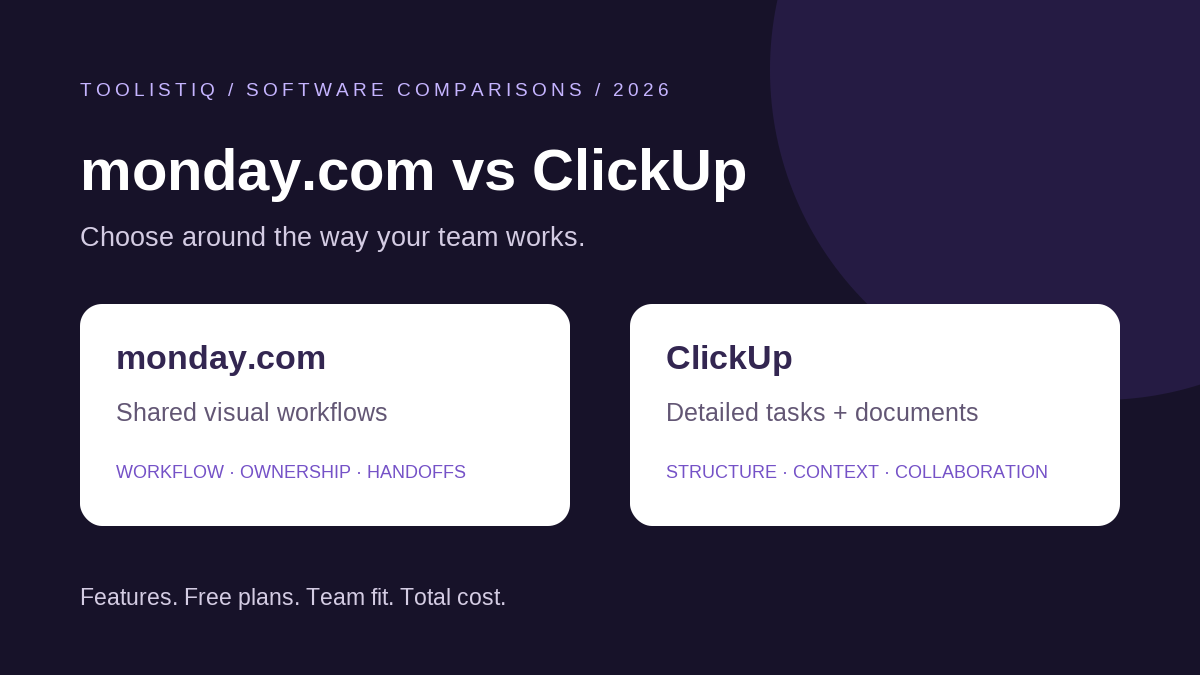
monday.com and ClickUp both help teams assign work, track progress, and coordinate projects. The better choice depends on how your team thinks about work: a shared visual process, or a detailed structure of tasks, projects, and supporting documents.
Our recommendation is conditional. Start with monday.com if your main problem is making ownership and handoffs visible across departments. Start with ClickUp if you want to organize detailed delivery work alongside documents, especially when a team larger than two needs a free starting point. These are editorial judgments about fit, not measured claims about speed or usability.
This comparison focuses on monday work management and ClickUp's project workspace. monday CRM and monday dev are separate products and should not be assumed included. Official documentation was checked on October 11, 2026. This is a documentation-based review, not a hands-on benchmark.
Compare the workflow before the feature list
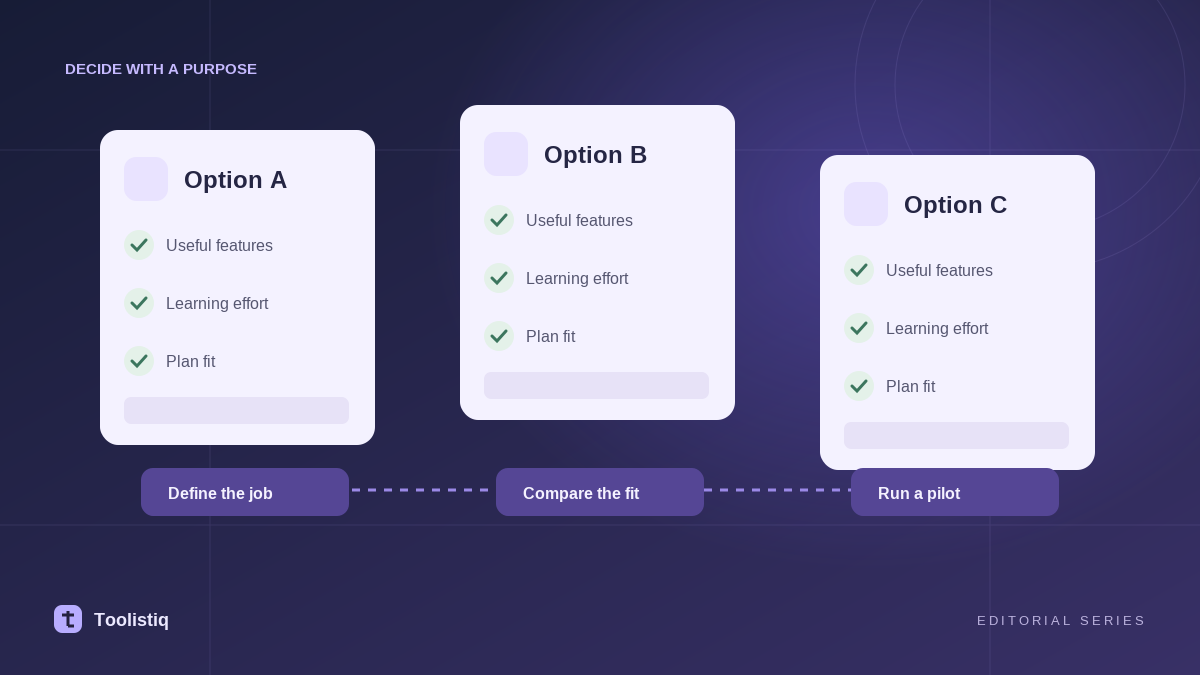
Use one real project for both trials: a client launch, recurring campaign, or internal improvement. Give it an owner, deadline, dependencies, and a review step. Ask a teammate to find the next action without an explanation from the person who configured the workspace.
A useful comparison includes setup effort, how reliably people update work, and whether the final report answers a business question. If a platform needs constant manual cleanup, its extra features may not justify the operational cost.
A shortlist at a glance
Two approaches to organizing the same work. These are starting points for a trial, not performance ratings.
| Tool | Best for | Primary category | Free option | Why it stands out |
|---|---|---|---|---|
| monday.com | Shared visual workflows across teams | Work management | 2 seats; 3 boards | Boards and status columns as a shared work overview |
| ClickUp | Detailed tasks and connected documentation | Project management | Unlimited members; usage limits | Task hierarchy, Docs, and several ways to view work |
monday.com overview
monday.com's boards organize work into items and columns. A team can use status and ownership to make a recurring process visible, then select views and reporting features according to its plan. This board-centered approach is a sensible candidate for marketing, operations, and cross-functional handoffs.
Keep the first board focused: request, owner, due date, status, and next decision. A shared board only helps when everyone uses the same meaning for each status. The platform's broader range of products does not mean every capability belongs to a work management subscription.
Official sources: monday.com Free plan documentation · monday.com plans
monday.com
- Best for
- Teams seeking a common visual process for ownership and handoffs.
- Pricing
- Free plan available; paid plans available
Key strengths
- Board-centered work can provide a shared operational overview.
- Multiple paid tiers let teams select reporting and automation capacity.
What to consider
- The Free plan's two-seat limit restricts a wider team pilot.
- Useful workflow features and automation depend on the selected paid tier.
Explore monday.com (opens in a new tab)
View Details for monday.com →ClickUp overview
ClickUp organizes work in a hierarchy: Workspace, Spaces, optional Folders, Lists, tasks, and subtasks. Docs and other workspace items sit alongside that structure. It is a useful candidate when projects contain several workstreams or when the team needs task detail and reference material together.
The hierarchy also creates setup decisions. Decide what counts as a Space or List before importing everything. A small team can start with one Space and a few Lists rather than reproducing a large organization's structure. Additional customization is useful only when it makes work easier to find.
Official sources: ClickUp hierarchy documentation
ClickUp
- Best for
- Teams coordinating detailed tasks and shared project knowledge.
- Pricing
- Free Forever plan; paid plans available
Key strengths
- Unlimited free members support a team-wide initial trial.
- Task hierarchy and Docs connect execution with reference material.
What to consider
- More configuration choices can require deliberate onboarding.
- Free access does not mean unlimited storage or unlimited use of every view.
Explore ClickUp (opens in a new tab)
View Details for ClickUp →Features comparison: what changes in everyday work?
For task tracking, monday.com puts the shared board at the center; ClickUp emphasizes tasks within its hierarchy. Both can support a process with owners and deadlines. Choose according to whether the team needs a quick operational overview or a more detailed breakdown of delivery work.
For planning views, monday.com's Standard plan lists Timeline, Gantt, and Calendar. ClickUp offers List, Board, Calendar, and Gantt views, but availability and usage limits vary by tier. Do not assume a view shown in a demonstration is unlimited on the free plan.
For documentation and reporting, monday workdocs can support shared planning, while ClickUp Docs can hold briefs and project knowledge. Both provide dashboards; check the number of connected boards or the permitted dashboard usage on your intended plan before designing your reporting process.
monday.com: make the handoff visible
Pilot a request-to-delivery board. Check whether owners, reviewers, and managers understand the same status definitions.
ClickUp: connect detail to context
Pilot a project List with subtasks and a linked brief. Check whether teammates can find both instructions and the next task.
Official sources: ClickUp features · monday.com plans
Ease of use: setup is part of the comparison
monday.com's board model may feel familiar to a team used to spreadsheets and shared status reviews. ClickUp's hierarchy may suit teams that already separate departments, projects, and granular tasks. Neither observation establishes that one is easier for every user.
Run the same onboarding exercise in each: create a task, assign it, change its status, add a comment, and find an overdue item. Record where a new teammate needs help. Prefer the product that supports those everyday actions with the least explanation for your team, rather than choosing from a polished demo.
Automation and AI features
Treat rule-based automation and generative AI as separate decisions. An automatic status update can be predictable; an AI-written summary still needs review. Start with one repetitive handoff and define what should happen when an automation fails.
monday.com lists automation and integration allowances on paid tiers; its Free plan excludes both. AI features are advertised from Basic, with plan-dependent access and credits. Check your expected actions and AI consumption before assuming that a subscription covers every workflow.
ClickUp provides rule-based Automations and offers ClickUp Brain for work-context AI assistance. Its AI range includes summaries and connected workspace knowledge. AI access, trials, credits, and add-ons have their own conditions; a free project workspace is not a promise of unlimited ongoing AI use.
Test AI on non-sensitive sample work first. Compare factual accuracy, correction time, and permission boundaries. Do not grant an agent broader access simply because its demonstration looks convenient.
Official sources: monday.com plans · ClickUp Automations · ClickUp Brain · ClickUp AI pricing
Pricing and free plans: compare the usable plan
monday.com's Free plan supports two seats and three boards. Its documentation lists item limits and excludes guests, viewers, automations, and integrations. Paid work management plans start at three users. That matters for a two-person business that only needs one paid feature: calculate the minimum billed seats, not just a headline per-user figure.
ClickUp's Free Forever plan lists unlimited tasks and free members, with 60 MB storage on the pricing page checked for this review. Collaborative Docs and basic task views make it a reasonable team pilot, but several advanced capabilities have trial or usage limits. Free is useful when those boundaries still cover the project.
Both providers offer tiered paid subscriptions and enterprise options. Displayed prices can depend on currency, billing cycle, location, and current offers. monday.com's page localized its currency during this review, so we have not created a misleading dollar-for-dollar table. Follow the official pricing links below for a current quote in your currency.
Budget for the actual team, required reporting, guest permissions, automation capacity, AI access, and annual commitment. A five-person team should compare the total billed amount for five usable seats and its required features—not the lowest advertised plan from each provider.
Official sources: monday.com Free plan documentation · monday.com plans · ClickUp plans
Team collaboration and external access
monday.com supports item updates and @mentions, keeping discussions beside the work. ClickUp combines task comments, assigned comments, Docs, and Chat capabilities. The useful question is whether decisions stay connected to the task instead of becoming scattered across several channels.
Check external collaboration separately. monday.com's Free plan does not support guests or viewers; paid guest access and billing depend on the plan. ClickUp's permissions and Chat limits also vary by tier. Test a realistic client or contractor scenario before assuming external access is free or that everyone can see the same information.
Agree where decisions are recorded and who owns the final action. Neither platform can resolve conflicting instructions if the team keeps authoritative project information in several places.
Official sources: monday.com Free plan documentation · monday.com guest pricing · ClickUp team onboarding
Which is better for small businesses?
A small agency coordinating many client deliverables should test ClickUp's project Lists and shared briefs. A business coordinating requests across operations, marketing, and management should test monday.com's shared boards. These are trial recommendations based on organizational fit, not restrictions on what either product can do.
For three or more people who need a free workspace, ClickUp has the clearer starting point because monday.com's Free plan stops at two seats. For a small team willing to pay for a shared visual process, monday.com remains worth evaluating. Include the time spent configuring and maintaining the system in the cost decision.
Avoid migrating your entire business during the trial. Keep one project reversible, define success in advance, and ask the people doing the work to evaluate it. A tool that managers like but contributors do not update will produce weak reporting.
Pros and cons: the tradeoff behind each strength
monday.com's strength is the potential to make a shared process visible. Its tradeoff is that a growing team must choose the right paid tier for views, automation, and permissions. More boards are not automatically a better operating system; consistency matters.
ClickUp's strength is the breadth of task organization and connected knowledge. Its tradeoff is the work of deciding how to use that breadth. A free team pilot is valuable, but it should expose feature limits and configuration effort before a larger rollout.
The overview cards above summarize each product's key strengths and considerations. Neither list represents a measured reliability score, a guaranteed productivity increase, or a universal ranking.
Final recommendations
Choose monday.com when a common visual workflow is your priority and its paid tier covers the views, permissions, and automation you need. Choose ClickUp when detailed task structure and shared documents are central, or when you need a free trial with more than two team members.
If both look suitable, run one project in each using the same brief. Compare onboarding questions, missed handoffs, reporting effort, and total subscription cost. Pick the system that your team can maintain consistently, then expand one workflow at a time.
Define the workflow
Name one project, its owners, and the decision your reporting should support.
Test the same work
Use the same brief and check contributor, manager, and guest experiences.
Price the real setup
Include seats, plan limits, AI, and ongoing administration before committing.